← All guest guides
Set up the Nebula projector
The Paradise field guide
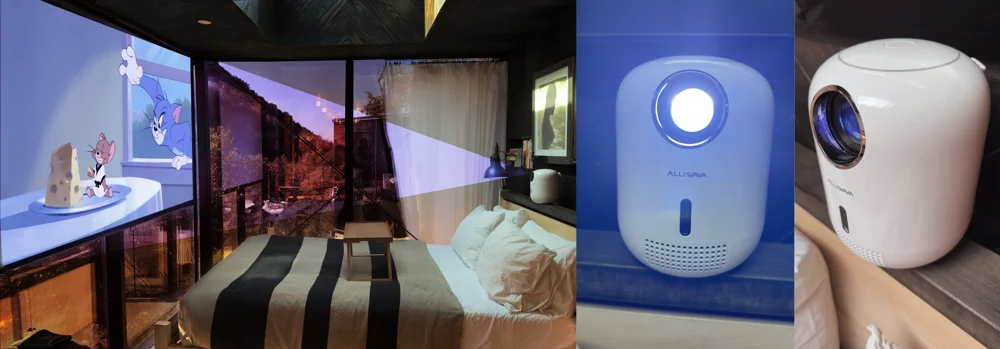
Movie night, at your own pace. Start with the Nebula quick start, then choose a topic for more help. Controls and streaming apps vary by model; follow the options shown on your supplied projector.
Your movie-night guide
Start with setup, or choose the step you need below.
Choose a topic
Mirror your iPhone screen
Use this for your own photos and compatible videos. Netflix and Prime Video may block screen mirroring; use their projector apps for streaming.
- Connect both the iPhone and the projector to STARLINK.
- If your projector home screen has an iPhone or iOS Cast option, open it with the remote. Leave that screen open and note the device name it displays.
- Open Control Center on your iPhone: swipe down from the top-right corner on newer phones, or swipe up from the bottom on a phone with a Home button.
- Tap Screen Mirroring, the button showing two overlapping rectangles. Select the exact device name shown by the projector.
- If a passcode appears on the projected screen, enter it on your iPhone. Wait for your phone’s screen to appear in the projection.
- Open Photos on your phone and choose your pictures or videos. To finish, return to Control Center, tap Screen Mirroring, then Stop Mirroring.